You’ve been uploading build output to Vercel or Netlify for years. You run npm run build, the framework spits out a build/ or dist/ directory, and your platform of choice uploads those files somewhere. That “somewhere” is what we’re talking about now. On AWS, the place where those files live is Amazon S3—Simple Storage Service.
If you want AWS’s canonical version of the service definition while you read, the Amazon S3 User Guide is the official reference.
S3 is the foundation of nearly everything you’ll build in this course. Before you can put a CDN in front of your site, before you can wire up a custom domain, before you can automate deployments with GitHub Actions—you need a place to put your files. S3 is that place.
Why This Matters
If you understand S3 correctly, the rest of the static-hosting stack stops feeling magical. CloudFront becomes “cache in front of a bucket,” Route 53 becomes “DNS that points at the cache,” and deployment becomes “replace objects predictably.” If you misunderstand S3, every later service feels arbitrary.
Builds On
This lesson builds on the deployment model you already know from Vercel and Netlify: frontend assets are static files generated by a build step and uploaded somewhere durable. The new piece is that AWS exposes the storage layer directly instead of hiding it behind a platform abstraction.
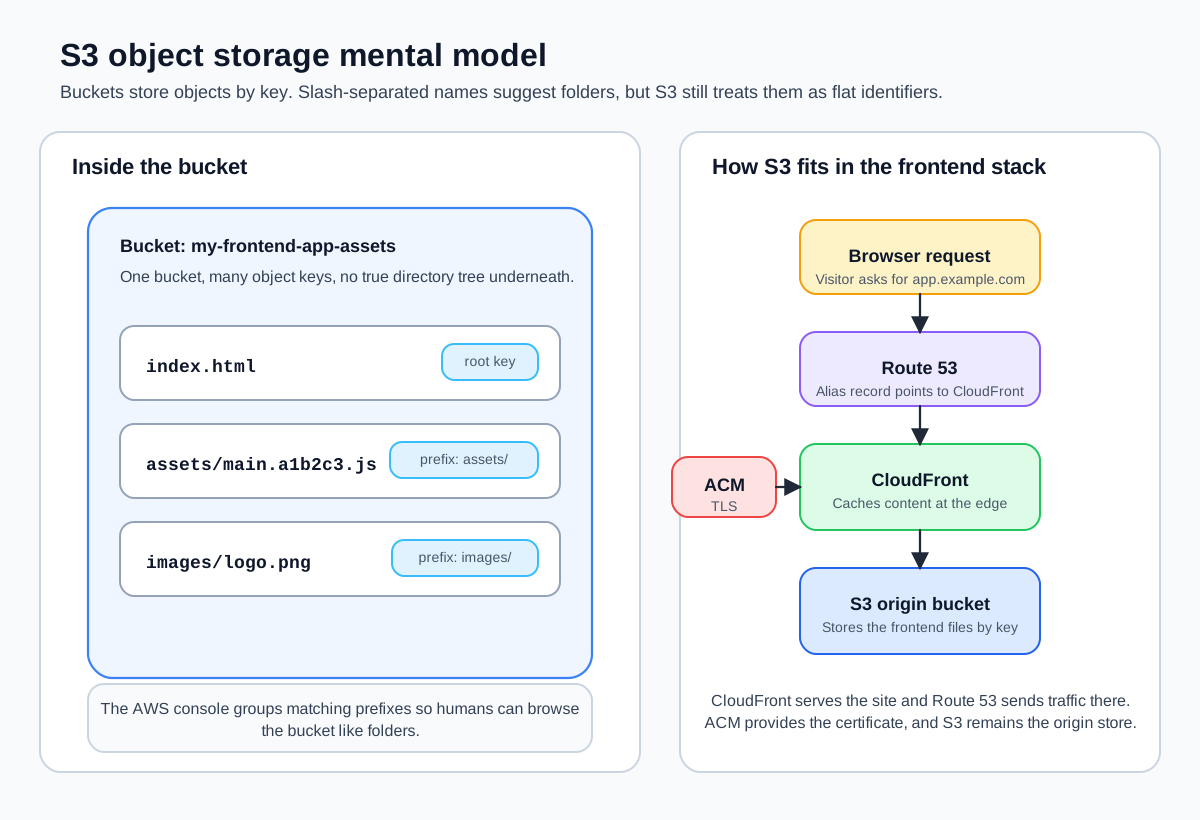
Object Storage, Not a File System
S3 is object storage. That distinction matters. A traditional file system (your laptop, an FTP server) organizes data into directories and subdirectories. S3 doesn’t have directories. It has buckets and objects, and the relationship between them is flatter than you might expect.
Object storage in plain English
Object storage stores data as whole objects inside a bucket. Each object has three parts: a key, the data itself, and metadata about that data.
How it’s different: a traditional file system gives you directories, nested paths, and files you can edit in place. Object storage gives you a flat collection of objects addressed by key. If you “move” or “rename” something, you’re usually copying the object to a new key and deleting the old one.
Advantages: it scales ridiculously well, it’s durable, it’s cheap for static assets, and it’s easy to serve over HTTP.
Disadvantages: it’s not a great fit for workloads that need low-latency random writes, shared file system behavior, or lots of tiny in-place updates. If you treat S3 like a remote hard drive, it will eventually make you regret your life choices.
A bucket is a container. Think of it as the top-level namespace for a collection of files. Every bucket name is globally unique across all AWS accounts—not just yours, every AWS account in the world. If someone in another account already created a bucket called my-app, you can’t use that name. This is why you’ll see bucket names like my-frontend-app-assets or acme-corp-production-static rather than short, generic names.
An object is a file stored inside a bucket. But S3 doesn’t think of objects in terms of file paths the way your operating system does. Each object has a key, which is a string that uniquely identifies it within the bucket. The key images/logo.png isn’t a file inside an images folder—it’s a single string that happens to contain a forward slash. S3 treats the entire key as one flat identifier.
The distinction matters because when you look at S3 in the AWS console, it shows you what looks like a folder structure. You see an images/ folder with logo.png inside it. That’s a convenience—the console is parsing the forward slashes in the key and rendering them as folders. Under the hood, there’s no folder. There’s just an object with the key images/logo.png.
The forward slashes in S3 keys are called key prefixes, and they work like virtual folders. You can list all objects with a given prefix, which makes them useful for organizing files. Just remember: they aren’t actual directories.
Why S3 for Frontend Engineers?
If you’re used to deploying on Vercel, you might wonder why you’d bother with S3 at all. Here’s the short version: S3 gives you direct control over where your files live, how they’re served, and what it costs.
When you deploy to Vercel, your build output ends up on their infrastructure—which, under the hood, is often backed by S3 or something very similar. The difference is that Vercel manages everything for you: the storage, the CDN, the SSL certificate, the DNS. That convenience is real and valuable. But it also means you’re locked into their pricing, their configuration options, and their deployment model.
With S3, you own the storage layer. You decide which region your files are stored in (and yes, it matters—we’ll use us-east-1 throughout this course). You decide who can access the files. You decide how long old versions stick around. You decide what it costs, because S3 pricing is transparent and granular: you pay for the storage you use and the requests you make, nothing more.
For a typical frontend application—a React or Next.js build with HTML, CSS, JavaScript, and some images—the storage cost is negligible. We’re talking pennies per month. The real value is understanding the layer that every other AWS service in this course builds on top of.
Buckets: The Top-Level Container
Every S3 operation starts with a bucket. Here are the things worth knowing upfront:
Globally unique names. You can’t create a bucket with the same name as any other bucket in any AWS account. Bucket names must be between 3 and 63 characters, lowercase, and can include hyphens. No underscores, no uppercase, no spaces.
Region-specific. Even though bucket names are globally unique, each bucket exists in a specific AWS region. When you create a bucket in us-east-1, the objects in that bucket are stored in data centers in Northern Virginia. This affects latency (users closer to the region get faster responses) and is why you’ll eventually put CloudFront in front of your bucket—but that comes later.
One account, many buckets. You can create up to 100 buckets per AWS account by default (you can request more). For this course, we’ll use one bucket for our static assets: my-frontend-app-assets.
Objects: Your Files in the Cloud
When you upload a file to S3, you’re creating an object. Each object consists of three things:
- Key—the unique identifier within the bucket (like
index.htmlorassets/main.js) - Data—the actual file contents
- Metadata—information about the object, like its content type, size, and last modified date
The maximum object size is 5 TB, but for frontend assets you’re dealing with files measured in kilobytes or a few megabytes. The interesting part is the metadata: S3 stores the content type alongside each object, which determines how browsers handle the file. If you upload a JavaScript file without setting the content type to application/javascript, the browser may refuse to execute it. We’ll cover this more when we talk about uploading files.
A Quick Look at S3 from the CLI
You set up the AWS CLI in Setting Up the AWS CLI. Let’s use it to see S3 in action. List your current buckets:
aws s3 ls \
  --region us-east-1 \
  --output json
If this is a fresh account, you’ll see an empty list. That’s expected—we’ll create our first bucket in the next lesson. The point is that s3 commands are first-class citizens in the AWS CLI, and you’ll use them constantly throughout this course.
You can also use the lower-level s3api commands for more granular control:
aws s3api list-buckets \
  --region us-east-1 \
  --output json
The s3 commands are high-level conveniences (like cp, sync, ls). The s3api commands map directly to the S3 API and give you access to everything. You’ll use both.
How S3 Fits into the Bigger Picture
Here’s where S3 sits in the architecture you’re going to build across this course:
- S3 holds your static files (this module)
- CloudFront sits in front of S3 and serves those files from edge locations around the world
- ACM provides the SSL certificate so your site loads over HTTPS on your domain
- Route 53 points your custom domain to CloudFront
S3 is the bottom of the stack. Everything else builds on top of it. The bucket policy you write in this module will be referenced when you set up CloudFront. The region you choose here affects where your certificate needs to be provisioned. I’ve found that understanding S3 well makes every subsequent module significantly easier.
Verification
- You can explain the difference between a bucket and an object without using the word “folder.”
- You can point at a build artifact like
index.htmlorapp.jsand describe it as an S3 object with a key, not a file in a traditional file system. - You can run
aws s3 lsoraws s3api list-bucketsand understand which command is the higher-level convenience wrapper.
Common Failure Modes
- Treating S3 like a normal file system: That mental model leads directly to confusion about “folders,” object keys, and bucket policies.
- Choosing a throwaway bucket name too quickly: Bucket names are global and effectively permanent in your architecture once other services start depending on them.
- Assuming upload equals public access: S3 stores files. It does not automatically turn them into a website or public origin.
S3 bucket names can’t be changed after creation. If you create a bucket with a name you don’t like, your only option is to create a new bucket, copy everything over, and delete the old one. Choose your bucket name carefully.
Next up, you’ll create your first S3 bucket, configure its settings, and understand the security defaults that AWS applies to every new bucket. The defaults have changed significantly over the years—as of April 2023, every new bucket has Block Public Access enabled and ACLs disabled by default. That’s a good thing for security, but it means you need to understand what to change (and what not to change) when you want to host a public website.