Every console.log you’ve written in your Lambda functions has been landing in CloudWatch Logs since Deploying and Testing a Lambda Function. The logs are there—but if you’ve ever tried to find a specific error in an unstructured wall of text, you know that having logs and being able to use them are two different things.
If you want AWS’s version of the logging service surface while you read, the CloudWatch overview is the official reference to keep nearby.
In this lesson, you’ll learn how CloudWatch organizes logs, how to switch from console.log('something happened') to structured JSON logging, and how to query your logs with CloudWatch Logs Insights—a SQL-like query language that makes your logs actually searchable.
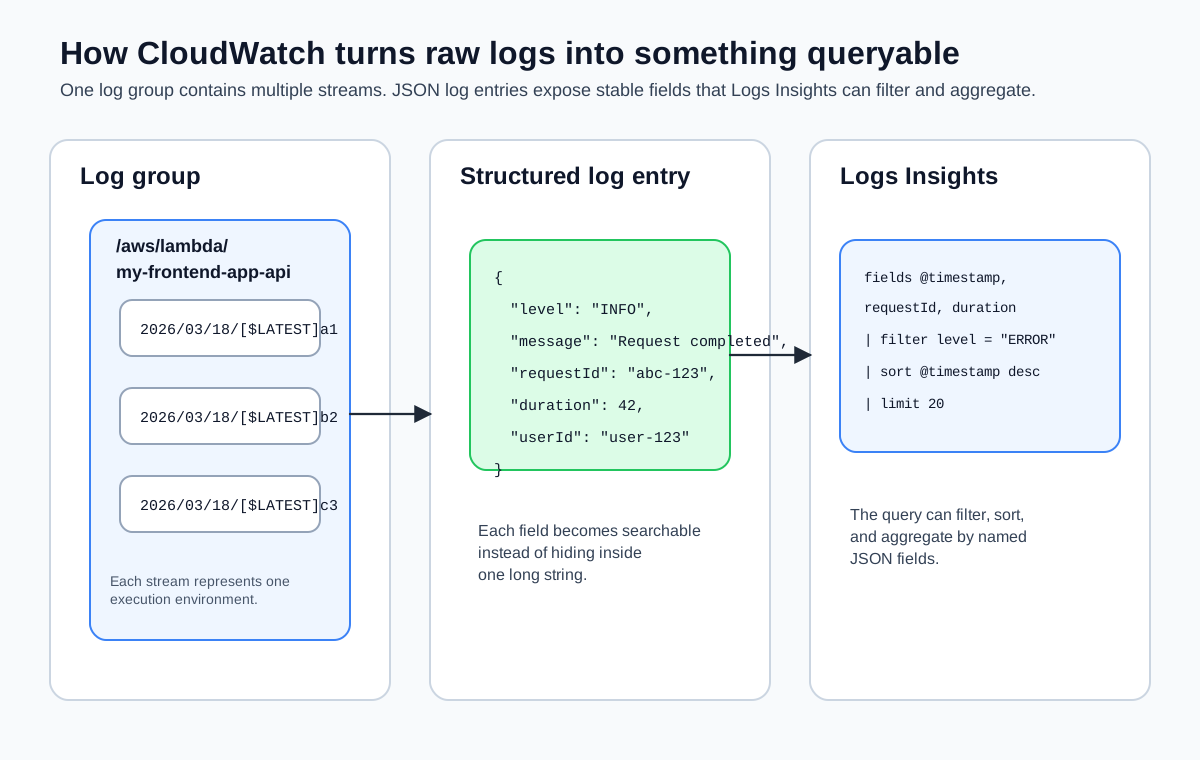
Log Groups and Log Streams
CloudWatch organizes logs into two levels: log groups and log streams.
A log group is a container for logs from a single source. Lambda creates one automatically for each function, following the naming convention /aws/lambda/<function-name>. Your function gets /aws/lambda/my-frontend-app-api. API Gateway can also write to log groups if you enable access logging (covered in API Gateway Stages and Custom Domains).
A log stream is a sequence of log events within a log group. Lambda creates a new log stream for each execution environment. If your function scales to three concurrent environments, you’ll see three log streams. Each stream’s name includes the date and a unique identifier—something like 2026/03/18/[$LATEST]a1b2c3d4e5f6.
To see your log groups from the CLI:
aws logs describe-log-groups \
  --log-group-name-prefix /aws/lambda/my-frontend-app-api \
  --region us-east-1 \
  --output json
To list the log streams inside a group:
aws logs describe-log-streams \
  --log-group-name /aws/lambda/my-frontend-app-api \
  --order-by LastEventTime \
  --descending \
  --limit 5 \
  --region us-east-1 \
  --output json
Retention Settings
By default, CloudWatch Logs keeps your logs forever. That’s almost never what you want. Logs accumulate, storage costs grow, and nobody is reading six-month-old debug output.
Set a retention policy on your log group:
aws logs put-retention-policy \
  --log-group-name /aws/lambda/my-frontend-app-api \
  --retention-in-days 30 \
  --region us-east-1 \
  --output json
Valid retention values include 1, 3, 5, 7, 14, 30, 60, 90, 120, 150, 180, 365, 400, 545, 731, 1096, 1827, 2192, 2557, 2922, 3288, and 3653 days. For development, 30 days is reasonable. For production, 90 days gives you enough history to investigate incidents without paying for years of storage.
If you don’t set a retention policy, your log storage costs will grow indefinitely. This is one of those AWS defaults that silently costs you money over time.
The Problem with console.log
Here’s how most developers log in Lambda functions:
console.log('Processing request for user:', userId);
console.log('Database query took', duration, 'ms');
console.log('Error:', error.message);
This works. You can read it in CloudWatch. But when you have thousands of log entries from hundreds of invocations, searching for “all errors for user abc-123” means scrolling through unstructured text and hoping your eyes catch it.
The fundamental issue: console.log produces strings. Strings are hard to filter, aggregate, and query programmatically.
Structured JSON Logging
Structured logging means writing log entries as JSON objects instead of plain strings. CloudWatch Logs Insights can parse JSON automatically, which means every field in your JSON becomes a searchable, filterable column.
Here’s what structured logging looks like in practice:
import type { APIGatewayProxyHandlerV2 } from 'aws-lambda';

interface LogEntry {
  level: string;
  message: string;
  requestId?: string;
  userId?: string;
  duration?: number;
  error?: string;
  [key: string]: unknown;
}

function log(entry: LogEntry): void {
  console.log(JSON.stringify(entry));
Note CloudWatch Logs Insights auto-parses JSON, making each field queryable.}

export const handler: APIGatewayProxyHandlerV2 = async (event) => {
  const requestId = event.requestContext?.requestId ?? 'unknown';
  const userId = event.queryStringParameters?.userId;

  log({
    level: 'INFO',
    message: 'Request received',
    requestId,
    userId,
    path: event.rawPath,
    method: event.requestContext?.http?.method,
  });

  const start = Date.now();

  try {
    // Your business logic here
    const result = { greeting: `Hello, ${userId ?? 'World'}!` };
    const duration = Date.now() - start;

    log({
      level: 'INFO',
      message: 'Request completed',
      requestId,
      userId,
      duration,
      statusCode: 200,
    });

    return {
      statusCode: 200,
      headers: { 'Content-Type': 'application/json' },
      body: JSON.stringify(result),
    };
  } catch (error) {
    const duration = Date.now() - start;

    log({
      level: 'ERROR',
      message: 'Request failed',
      requestId,
      userId,
      duration,
      error: error instanceof Error ? error.message : String(error),
    });

    return {
      statusCode: 500,
      headers: { 'Content-Type': 'application/json' },
      body: JSON.stringify({ error: 'Internal server error' }),
    };
  }
};
The key difference: instead of console.log('Error:', error.message), you write console.log(JSON.stringify({ level: 'ERROR', message: 'Request failed', error: error.message })). Each log entry is a single-line JSON object that CloudWatch can parse and index.
You don’t need a logging library. A simple log helper function that calls console.log(JSON.stringify(entry)) is all you need for Lambda. Libraries like pino or winston add features you generally don’t need in a serverless context—structured JSON output is the goal, and JSON.stringify gets you there.
Querying with CloudWatch Logs Insights
CloudWatch Logs Insights is a query language for searching and analyzing log data. If you’ve used SQL, the syntax will feel familiar. If you’ve used browser DevTools to filter console output, this is the industrial-strength version.
Basic Queries
Find the 25 most recent log entries:
fields @timestamp, @message
| sort @timestamp desc
| limit 25
Filter for errors only (assuming structured JSON logging):
fields @timestamp, level, message, error, requestId
| filter level = "ERROR"
| sort @timestamp desc
| limit 50
Find all requests for a specific user:
fields @timestamp, level, message, userId, duration
| filter userId = "abc-123"
| sort @timestamp desc
Aggregation Queries
Count errors per hour:
filter level = "ERROR"
| stats count(*) as errorCount by bin(1h)
| sort errorCount desc
Get average and p95 request duration:
filter level = "INFO" and message = "Request completed"
| stats avg(duration) as avgDuration,
        pct(duration, 95) as p95Duration
  by bin(5m)
Find the slowest requests:
filter level = "INFO" and message = "Request completed"
| sort duration desc
| limit 10
Running Insights Queries from the CLI
You can run Insights queries from the command line using aws logs start-query and aws logs get-query-results. The query runs asynchronously—you start it, get a query ID, and then poll for results.
aws logs start-query \
  --log-group-name /aws/lambda/my-frontend-app-api \
  --start-time $(date -v-1H +%s) \
  --end-time $(date +%s) \
  --query-string 'fields @timestamp, level, message, duration | filter level = "ERROR" | sort @timestamp desc | limit 20' \
  --region us-east-1 \
  --output json
This returns a query ID:
{
  "queryId": "a1b2c3d4-5678-90ab-cdef-example11111"
}
Fetch the results:
aws logs get-query-results \
  --query-id "a1b2c3d4-5678-90ab-cdef-example11111" \
  --region us-east-1 \
  --output json
The --start-time and --end-time parameters expect epoch timestamps (seconds since January 1, 1970). On macOS, date -v-1H +%s gives you “one hour ago” as an epoch timestamp. On Linux, use date -d '1 hour ago' +%s.
Insights Query Syntax Reference
| Command | Purpose | Example |
|---|---|---|
fields | Select which fields to display | fields @timestamp, level, message |
filter | Keep only matching records | filter level = "ERROR" |
stats | Aggregate data | stats count(*) by level |
sort | Order results | sort @timestamp desc |
limit | Cap the number of results | limit 25 |
parse | Extract fields from unstructured text | parse @message "User * performed *" as user, action |
The @ prefix denotes system fields that CloudWatch adds automatically: @timestamp, @message, @logStream, @log. Your structured JSON fields (like level, requestId, duration) are referenced without the @ prefix.
Structured Logging vs. Plain Text: The Payoff
Here’s the same debugging scenario with both approaches.
Plain text logs: “Find all failed requests for user abc-123 in the last hour.” You open the log group, scroll through dozens of streams, Ctrl+F for “abc-123”, and hope the error message is near the user ID in the log output.
Structured JSON logs: You run an Insights query:
fields @timestamp, message, error, duration
| filter level = "ERROR" and userId = "abc-123"
| sort @timestamp desc
Results appear in seconds, with every field neatly extracted. You see the error message, the request duration, and the timestamp for each failure. No scrolling, no guessing.
The five minutes you spend switching to structured logging pays for itself the first time you debug a production issue at 11 PM. I learned this the hard way—nothing quite like scrolling through unstructured text at midnight wishing you’d spent those five minutes earlier.
Now that your logs are structured and queryable, it’s time to look at the other side of CloudWatch: the metrics that Lambda, API Gateway, and DynamoDB publish automatically. In the next lesson, you’ll build a dashboard that gives you a single view of your application’s health.